 Yakka Time
Activity log
Activity log built from clock-ins
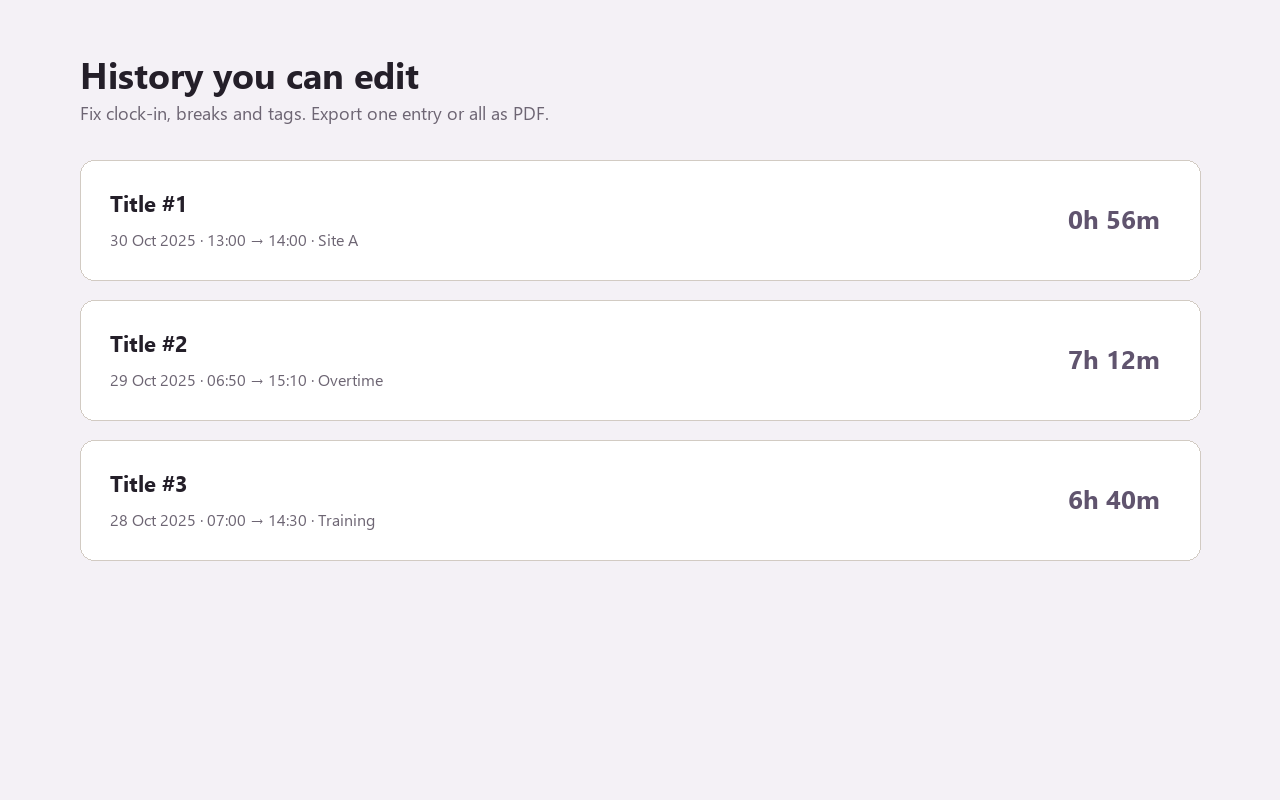
Your History list is an activity log of where the hours went. Titles and tags turn raw time into a readable week. Below you will find a longer walkthrough, AU context, common mistakes, PDF export timing, and FAQs so this activity log page is useful even before you install the extension.


- Log as you clock
- Read the week back
- Why a solid activity log matters here
- Full walkthrough: activity log with Yakka Time
- Mistakes that wreck a activity log
- Who this activity log is for
- Yakka Time in Chrome vs the Yakka Labour app
- When to export your activity log PDF
- Screenshots
- FAQs
Log as you clock
You do not write a separate diary. Clocking in and naming the shift fills the activity log automatically.
Read the week back
Skim History by date. Export PDF when you need a formal copy of the log for a client or supervisor.
Why a solid activity log matters here
On Australian sites, hours disputes usually start with missing clock times. A dependable activity log reduces that friction because you recorded the day while you were still there.
Activity log built from clock-ins is the promise. In practice that means clocking in from Chrome, marking breaks, fixing missed clock-outs the same day, and exporting PDF when someone asks.
Yakka Time is built for personal hours, not for monitoring a whole crew. That keeps the tool light enough to use between tasks instead of becoming another login you avoid.
- Record hours while the shift is fresh
- Separate unpaid breaks from worked time
- Tag sites so one job can get its own export
- Keep PDFs before you wipe a Chrome profile
Full walkthrough: activity log with Yakka Time
Install Yakka Time from the Chrome Web Store and pin it beside the tabs you already use for plans, emails or supplier portals. The first time you open it, you are ready to treat it as your activity log.
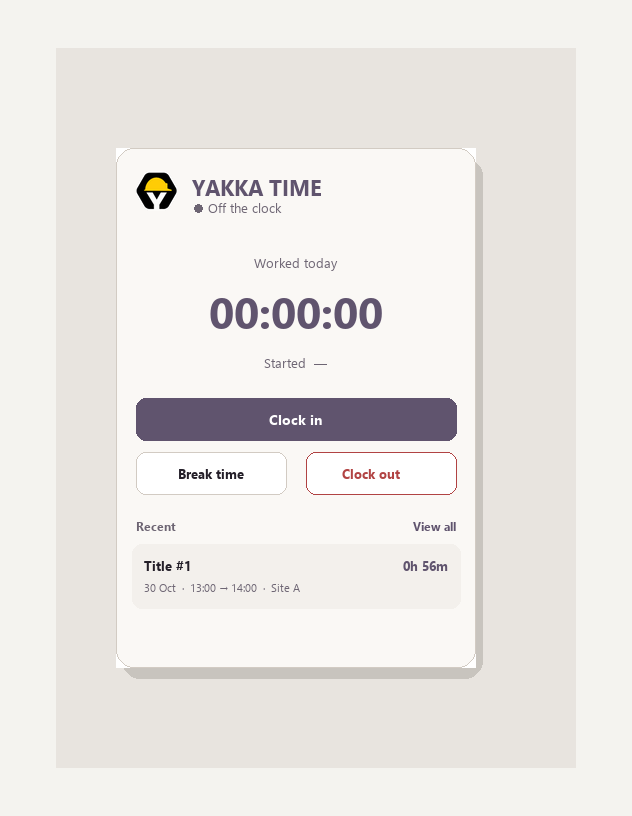
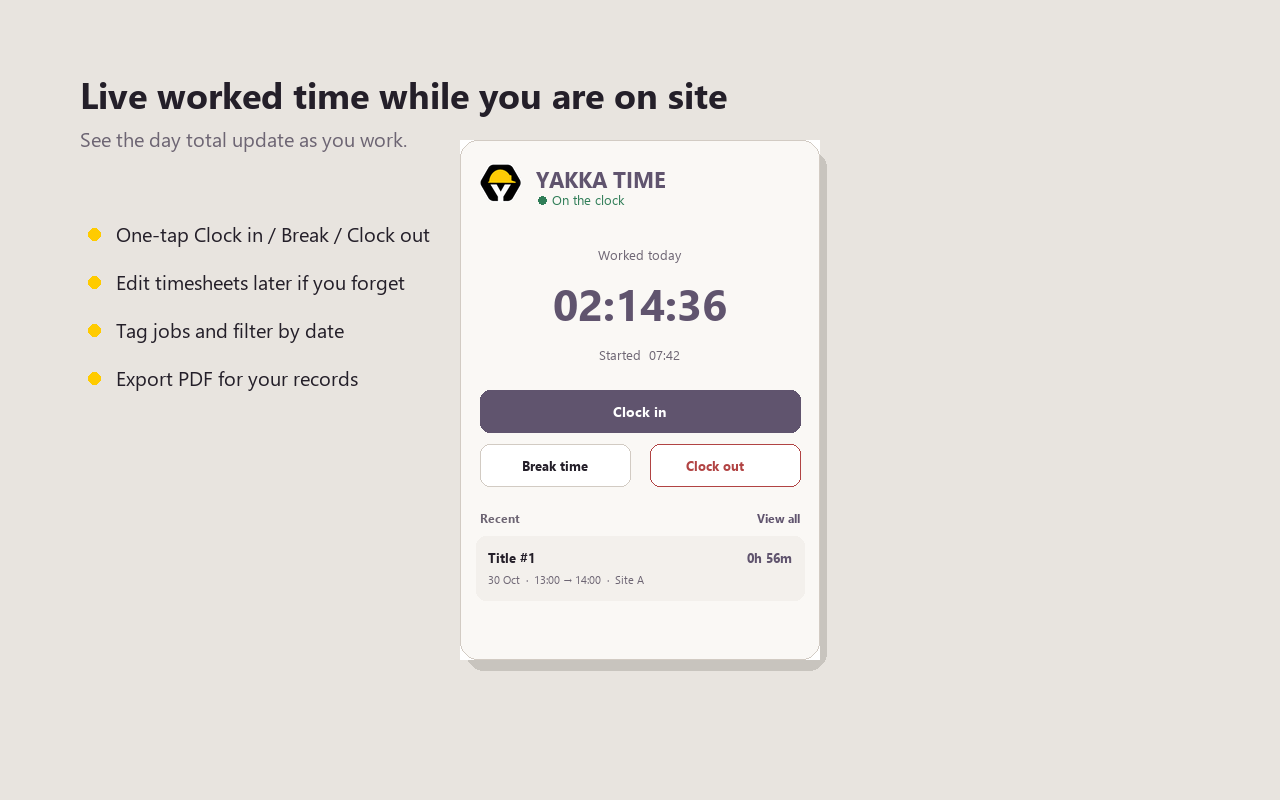
When the shift starts, open the popup and tap Clock in. If you stop for smoko or lunch, tap Break time so those minutes do not inflate worked hours. When you finish, tap Clock out. That single loop creates the core of your timesheet line.
Open History after knock-off. Give the entry a title people will recognise (site address, stage, client, or “overtime”). Add a tag if you will filter later. If you forgot to stop the timer, edit clock-out and break minutes instead of deleting the day.
When you need to send hours, export one entry or the full history as PDF. Email it, print it, or keep it with your records. That is the whole activity log app workflow without a second spreadsheet open on the side of the job.
- Pin the extension so clock-in takes one click
- Name every entry before the week blurs together
- Fix mistakes in History the same day when you can
- Export PDF before clearing Chrome or swapping laptops
Mistakes that wreck a activity log
Starting the timer “later” and guessing the start time at lunch is how short mornings disappear. Clock in when work starts, even if you only have thirty seconds at the ute laptop.
Letting a forgotten timer run overnight creates a useless entry. Check History the same evening. Edit the real finish time rather than deleting evidence of the day.
Using one untitled list for every job forces you to explain the PDF in a follow-up email. Titles and tags make activity log exports self-explanatory.
Who this activity log is for
People who live in Chrome on site or in the yard office. Casual labour, trades across a few jobs, warehouse and cleaning shifts, side work that still needs clean hours.
If you need a full team attendance suite with approvals and GPS kiosks, look elsewhere. If you need a personal activity log that becomes a PDF without drama, Yakka Time is the fit.
Yakka Time in Chrome vs the Yakka Labour app
Yakka Time is the free Chrome extension for your own activity log. It stores hours in that browser profile and exports PDF when you need a shareable timesheet.
The Yakka Labour app is the hire marketplace on iPhone and Android: pick up shifts, submit timesheets in the app flow, and hire workers when you are the one staffing a site.
Many people use both. Track personal hours in Chrome with Yakka Time. Use the phone app when the work is hiring, rostering or mobile-first shift claims. The request form on this page is for employers who need workers, not for starting the Chrome timer.
- Chrome extension: personal clock-in, breaks, history, PDF
- Mobile app: shifts, hire, on-phone timesheets
- Request workers: labour for a job you need staffed
When to export your activity log PDF
Export at the end of a day if a supervisor wants same-day proof. Export at week end for ordinary pay claims. Export before you wipe a profile, hand back a work laptop, or switch machines.
If one client or builder only needs their hours, filter by tag or export that single entry. A focused PDF beats a messy dump of every job you touched this month.
Your History list is an activity log of where the hours went. Titles and tags turn raw time into a readable week. Keeping that habit means the export is a checkout step, not a Sunday night archaeology project.
Where your hours live
Yakka Time keeps entries in Chrome local storage on the device and profile you used. It is a personal activity log, not a cloud payroll ledger that every manager can open.
That is why exports matter. PDF is your durable copy. If you clear site data, switch profiles or retire a laptop, export first. Treat History as working memory and PDF as the filing cabinet.
Keep going on activity log
Use the related links at the bottom of this page for neighbouring guides in the Yakka Time cluster. The hub at /yakka-time/ lists core tools, industry pages and calculators so you can move between topics without losing the install CTAs.
If you came here searching for activity log app, start with the walkthrough above, install the extension, then skim the FAQ for edge cases like missed clock-outs, overtime tags and multi-site weeks.
See Yakka Time in Chrome
Real screenshots for activity log: timer, live hours and editable history.
Activity log FAQs
Does it log which websites I visit?
No. It only logs the shifts you start and stop.
Can I add notes?
Use the entry title and tags to describe the activity. Keep longer notes outside the extension if needed.
How far back does the log go?
As long as entries remain in that Chrome profile. Export PDFs for long-term storage.
How is Yakka Time different from a spreadsheet activity log?
Spreadsheets rely on you typing hours later. Yakka Time starts from a live clock-in, stores breaks, and exports PDF from History so you are not rebuilding the week from memory.
Can I use this activity log on more than one site in a week?
Yes. Clock out when you leave a site, clock in at the next, and use titles or tags so each job stays separable when you export.
What happens if Chrome crashes mid-shift?
Open History when you are back. If the entry looks wrong, edit clock-out and break minutes to match what actually happened, then export PDF once it is clean.
Is Yakka Time suitable only for construction?
No. Construction is a big audience, but warehouse, cleaning, hospitality, trades and general casual work use the same clock-in and timesheet flow.
Do I need an account to keep a activity log?
You install the Chrome extension and use it on that browser profile. Hours stay local until you export. Hiring workers through Yakka Labour is a separate flow.
Can my employer force this extension?
Yakka Time is a personal tool. Workplaces may still require their own clock. Keeping your own PDF record is still useful when systems disagree.
Install Yakka Time
Free on Chrome for personal hours and timesheets. The Yakka Labour app covers shifts, hire and timesheets on your phone.